Download the agent
What you need to know before installing the ClockWitness agent on your team's Windows computer: requirements, the full step-by-step walkthrough with screenshots, and the warning Windows shows for installers without a digital signature.
Requirements
Operating system
Windows 10 or 11. There is no macOS version and no mobile app.
Administrator rights
Not required. The installer and the agent run at the user-account level, not the machine level.
Disk space
About 74 MB for the installer.
Install time
3 to 5 minutes, from download to the first time tracked.
Company antivirus
The installer doesn't have a digital signature yet, so Windows shows a warning the first time you run it (see below). A stricter corporate antivirus may flag it the same way; if that happens, ask your company's IT department to allow the file ClockWitness.Agent-win-Setup.exe.
How to get the agent
ClockWitness.Agent-win-Setup.exe — about 74 MB, Windows 10 or 11.
When you install it, Windows will show "Unknown publisher" — that's normal, the warning appears on any installer without a paid Microsoft signature.
You need an account to record time
The agent installs freely, but it only starts recording time once you sign in with a ClockWitness account. There is no public sign-up: accounts are created by the company using the product.
If your company already uses ClockWitness, ask your manager to send you an email invitation. That invitation is what gives you the account.
If your company doesn't use ClockWitness yet, talk to us.
Request a demoFull step-by-step guide
-
1
Download
Click the download button at the top of the page. The file
ClockWitness.Agent-win-Setup.exe(about 74 MB) lands in the downloads folder. -
2
The Chrome warning
The browser may block the download with a "suspicious file" warning. It's not a problem with the file — choose "Keep" or "Download anyway" to continue. It doesn't always show up.

If it shows up, click the ⋮ menu next to the file name. 
-
3
The Windows warning
When you open the installer, Windows will most likely show a blue screen: "Windows protected your PC" — Unknown publisher. This is expected.
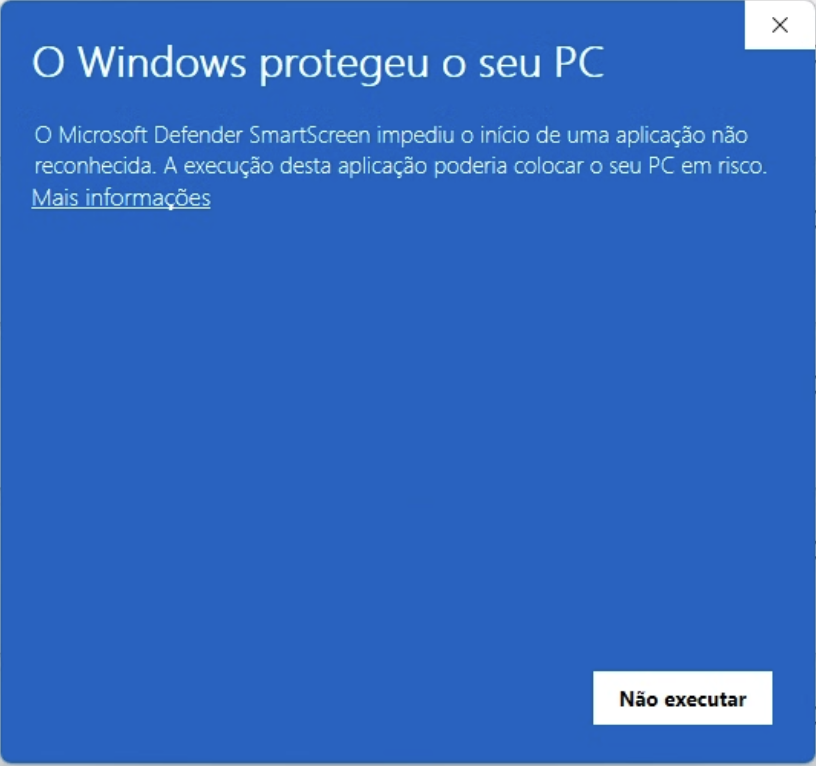
Click "More info", below the text. It's expected: the ClockWitness installer doesn't have a digital signature yet, the same warning any new app from a small company gets. It doesn't mean the file is corrupted or unsafe.
Three steps, and the installation carries on:
- Click "More info", below the warning.
- Click "Run anyway".
- Installation starts normally, with no further warnings.
Always download the installer from
clockwitness.com— never from an email or a link someone else sent you.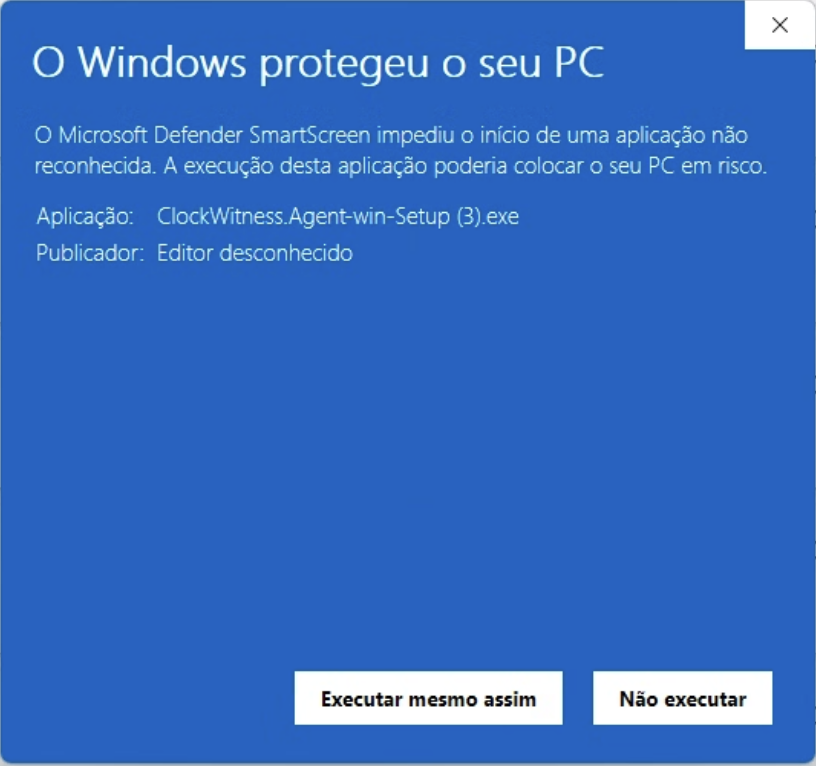
The screen expands and shows "Run anyway". Installation itself is quick — a few seconds — and doesn't ask for the Windows password or administrator rights. If a version is already installed, the installer offers "Repair" instead of installing again — it doesn't erase any work already done.
-
4
Signing in
Enter the email and password for your ClockWitness account — the same ones you use on the dashboard. The field is labelled "Password", in English, right inside the agent's own window.
Before you sign in, the window already explains that, while recording is on, the screen is photographed periodically — it's not hidden small print, it's the first thing you see. -
5
Choosing the project
Select the project you're working on from your company's list, then click Start.
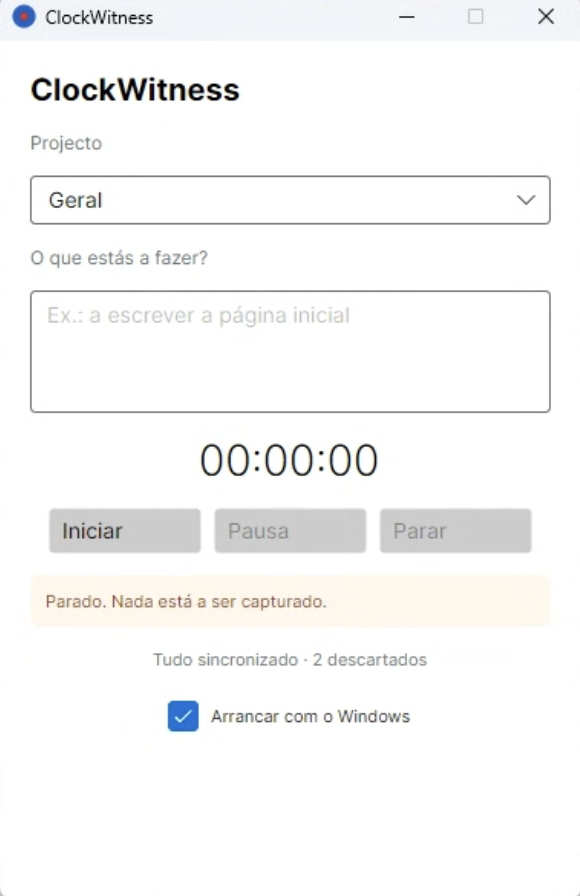
The "Start with Windows" box is checked by default — the agent opens on its own the next time you turn the computer on. You can uncheck it if you'd rather open it by hand.
-
6
During the day
Next to the clock, the tray icon confirms the state: recording, paused, or stopped. You can close the window without stopping the recording.
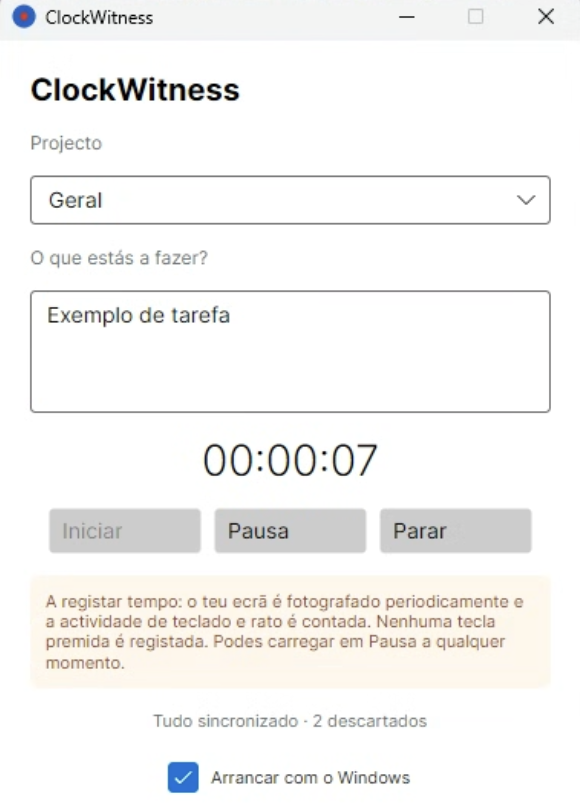
- Recording — blue icon with a red dot. The session is open: the screen is photographed at intervals and time is counting.
- Paused — blue icon with a grey dot. The session stays open, but nothing is captured or counted until you resume.
- Stopped — grey icon, no dot. Nothing is being captured or recorded.
Need to stop for a moment? Click "Pause" at any time — nothing is lost.
-
7
End of day
Open ClockWitness and click Stop. Only then turn off the computer as usual.
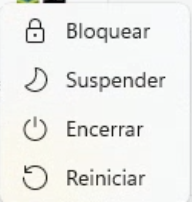
Start menu → power button → Shut down. Turning off Windows without clicking "Stop" isn't serious — the agent saves the work done up to that point. But clicking "Stop" is more correct: it's the actual moment you decide the work day is over.
Frequently asked questions
- Do I need administrator rights to install it?
- No. The installer and the app run at the user-account level — you won't see any administrator password prompt.
- Will the Windows warning show up every time I install it?
- Yes, for as long as the installer doesn't have a paid digital signature. It's a one-time warning, at install time — it doesn't come back once the agent is installed and running.
- What if my company's antivirus blocks the installer?
-
It can happen: some antivirus tools flag installers that are new and unsigned, even when there's nothing actually wrong with the file. Ask your IT department to allow
ClockWitness.Agent-win-Setup.exe. - How do I uninstall the agent?
- Through the normal Windows path: Settings → Apps → search for "ClockWitness" → Uninstall. Hours already recorded on the server aren't affected.